
Quick Guide to Playing Super Smash Bros. Ultimate Natively on PC
How to run Super Smash Bros. Ultimate natively on Windows, without emulators
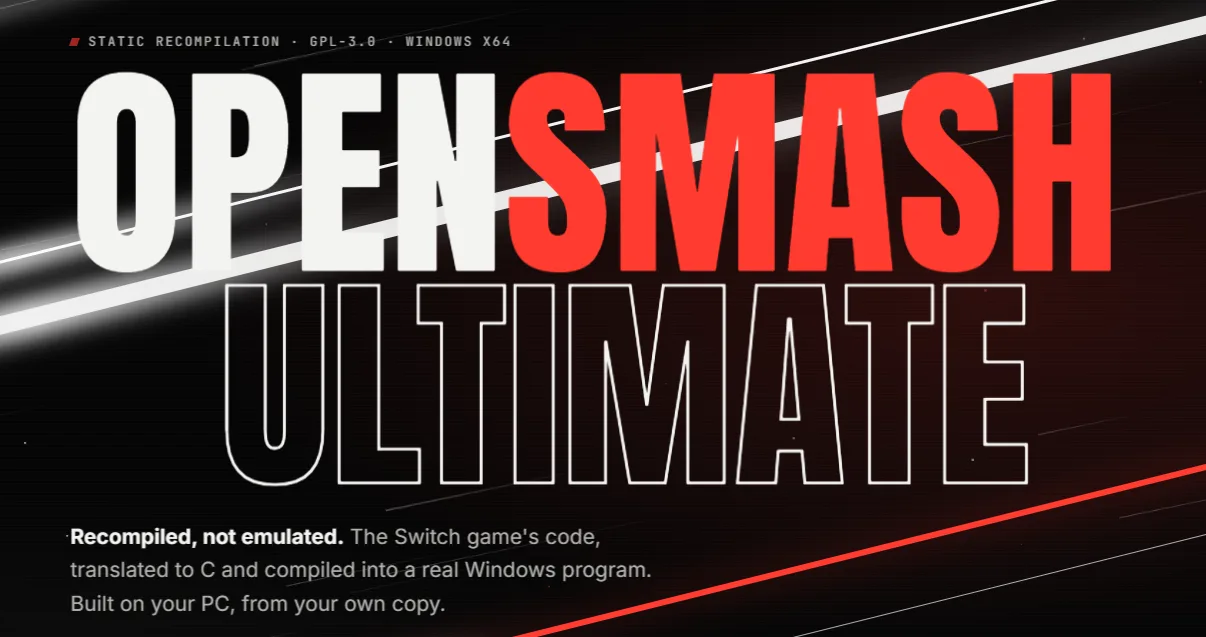
OpenSmash-Ultimate allows you to run Super Smash Bros. Ultimate natively on Windows, without Yuzu, Ryujinx, or other Nintendo Switch emulators. It has the potential to reduce input lag and test online rollback, but it's still experimental: you may encounter bugs, crashes, or performance that falls short of your expectations.
1. What you'll need
- PC: 64-bit Windows 10/11, an AVX2-compatible CPU, a GPU that supports Vulkan 1.3, and at least 25 GB of free space.
- Game: Files from your own copy of Smash Ultimate (NSP/XCI) and update version 13.0.4 or 13.0.5.
- Keys:
prod.keys - Optional: DLCs
Recommendation
Make sure everyone is using Ultimate 13.0.5 and compatible versions of the port. This helps avoid many connection issues.
2. How to install it
1. Download the project. Go to the official GitHub repository, click Code → Download ZIP, and extract everything into a folder.
Official OpenSmash-Ultimate GitHub repository.
2. Run the installer. Open Install SSBU.bat inside the extracted folder. Do not run it directly from the ZIP file.
3. Select the files. The installer will attempt to detect the game, update, and prod.keys files. If anything is missing, select it manually. You can also choose the folder where you want everything to be stored.
4. Click Install. The installer will download the necessary tools and prepare the game. The initial build can take quite a while, potentially over an hour.
5. Launch the game. Once the process is complete, run Play SSBU.bat. The first launch will be slow because shaders need to be prepared.
If the installation gets interrupted, reopen Install SSBU.bat and select Resume when the option appears. You don't need to start from scratch.
3. Settings and controllers
Once in the game, press F1 to open the settings menu. F2 displays statistics (FPS and frame time), while F11 switches the window mode.
Setting up a controller
1. Connect it. Open F1 → Controls and check that your controller appears.
2. Assign it. Select your player and check the buttons using the input test.
3. Test it. Start an offline match to check the sticks, triggers, and button mappings.
Official GameCube adapters may work with WinUSB (the driver commonly used by Slippi). For Smashbox, Lossless Adapter, and other specialized devices, compatibility depends on the model.
4. Playing online
The port's online functionality is experimental (AND IT'S VERY LIKELY THAT THERE IS STILL A SIGNIFICANT AMOUNT OF INPUT LAG) and uses Local Wireless rather than Nintendo's servers.
1. Enable online play. Go to F1 → Experimental → Online play. Select Lobby server and restart the game.
2. Choose a nickname. Under F1 → Experimental → Your name, enter your player name.
3. Create a room. One player goes to Local Wireless → Create Room and waits for their opponent.
4. Join the room. The other player goes to Local Wireless → Rooms List, selects the room, and requests to join.
5. Play. The host accepts the other player. Once everything is ready, both players select their characters and start the match by pressing L + R.
For now, there is no conventional matchmaking system like the one on Switch (but it's in development). The easiest approach is to arrange a match with someone and create a room.
5. Rollback (experimental)
Rollback aims to make online matches feel more responsive when there is network latency. To test it:
1. Open F1 → Experimental. Find Rollback netcode and set it to ON.
2. Restart the game. Both players must enable it and use compatible versions: 13.0.4 or 13.0.5.
3. Test a 1v1 match. For now, it's designed for rooms with exactly two players.
It's not magic: stuttering, desynchronization, crashes, and considerably more input lag than you'd expect may still occur.
6. Common issues
- Black screen on launch: The first launch may look as though the game is frozen on a black screen. It's best to leave it running for a few minutes. It should become responsive within 3–4 minutes, and this shouldn't happen again afterward.
- Crashes, especially in Training Mode: The port is still under development. You can try again, save the log, and report the issue.
- Controller not detected: Check F1 → Controls, the adapter's driver, and close any programs that might be using the controller.
- Can't see the room: Check the game version, Lobby server mode, port compatibility, and Windows Firewall settings.
- Incomplete installation: Open
Install SSBU.batand click Resume.
7. Updating the port
Close the game. You can back up your save files if you wish, then run Install SSBU.bat again. The installer will check what needs to be updated.
Useful links
Official installation instructions
Note: This is an independent project and is not affiliated with Nintendo. It does not include the game or its keys, and it may change significantly between versions.